
Updating your dinners can easily be done online.
Overview
Every dinner comes with a main and side. To start, you'll see suggested dinners (based on your Menu page) that you can change.
Swapping dinners
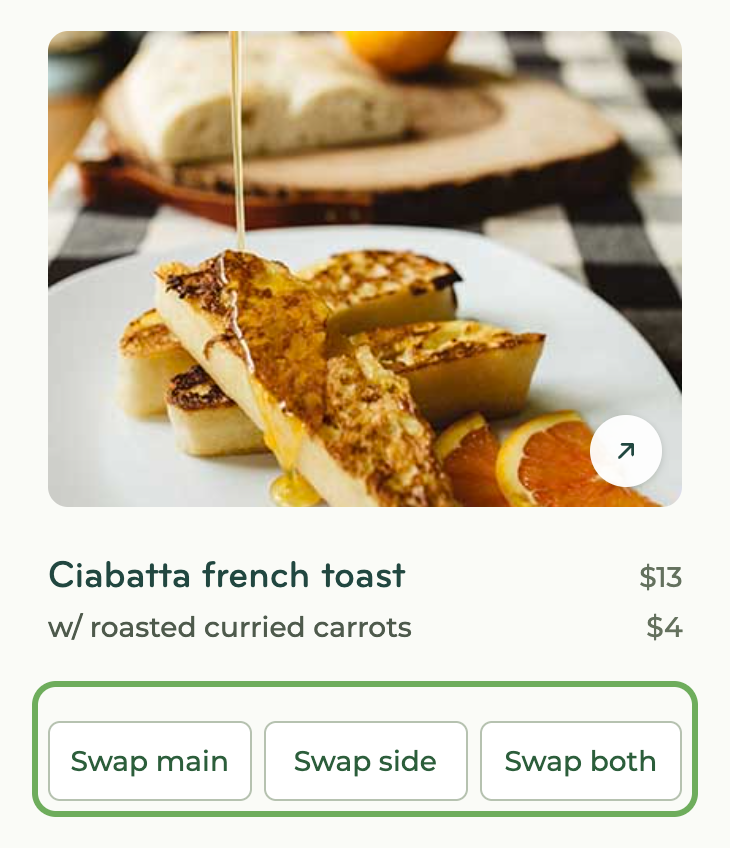
On your appointment page, click the swap icon (⇄) next to a dinner's main for a new main (the side stays when it still goes with it), next to its side for a new side, or Both on its photo for a whole new dinner (this can also change whether it cooks in the oven or on the stove). Or click "Browse menu" to pick your own.
A change to how a dinner is made, like "Add pepper," goes in your note for your chef.
A dinner marked Your version is changed to fit your preferences. Learn more.
Pairing constraints
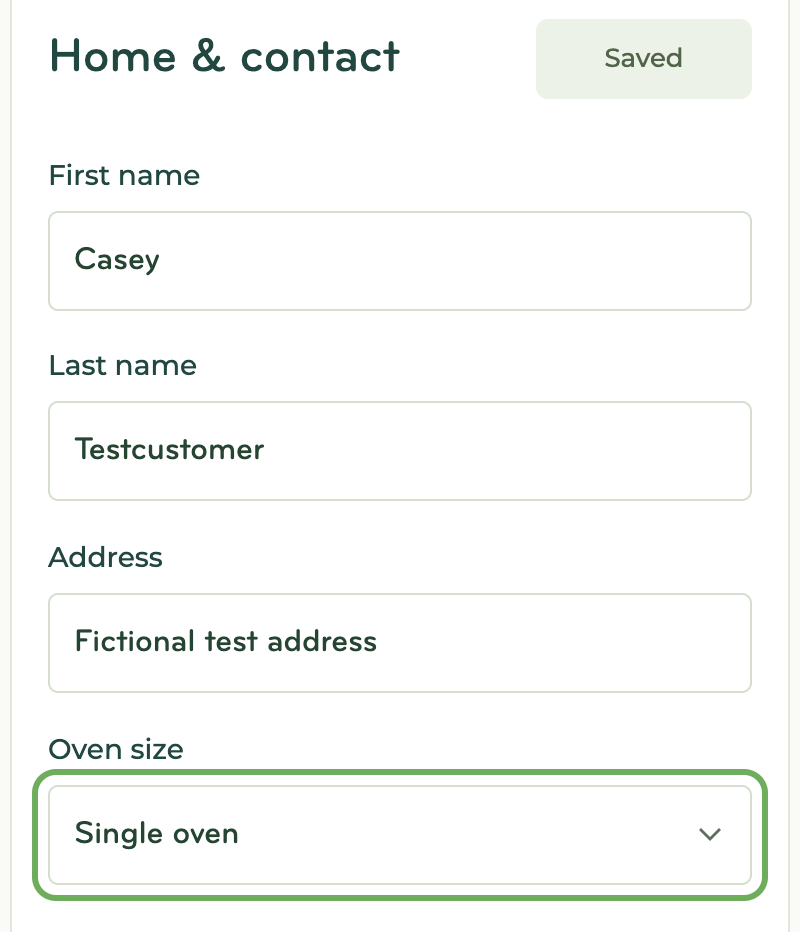
To prevent cooking six items that all use the oven or stove, we limit side pairings to ones of the opposite cook method. To view a different list of side options, pick mains from the "Cooked in oven" or "Cooked on stove" label in Browse your menu. If you have a double oven, set Oven size on your Account page to see more side options.
Deadline to update your dinners
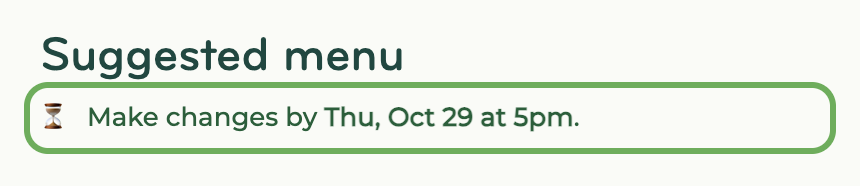
Update your dinners any time before 5 pm the night prior to your appointment.
Broken oven/stove
If you know that your oven or stove is broken prior to your appointment (it happens), follow these tips to pick dinners that will work for your chef.
When picking sides, try to pick cold items (e.g., fruit, salads).
Then contact support and we'll confirm that everything looks ok. 👍
FAQ
- Where's my side?
- Sides only show when they use the opposite cook method of your main. Under the sides in Browse menu, click "Pick a main cooked in the oven" (or "on the stove") to see mains that go with it, then choose your side.
- Why are some recipes named after customers?
- Some long-term customers earned a special reward. 😊